
Alabama 4-H


Alabama 4-H is excited to host the Joint Military Teen Leadership Summit August 17–22 in Estes Park, Colorado. The summit is a part of the Military Teen Adventure Camps conducted through the 4-H Military Partnership. The following is a step-by-step guide on how to register.
Step 1
Visit 4HOnline at jointmilsummit26.4honline.com to register. There, click Register at the bottom of the screen (figure 1).
A log-in screen will appear, where you will enter your email address and click Email Login Link.
You will then receive a pop-up message: Check Email—You have been emailed a link which will log you in.
Click OK.
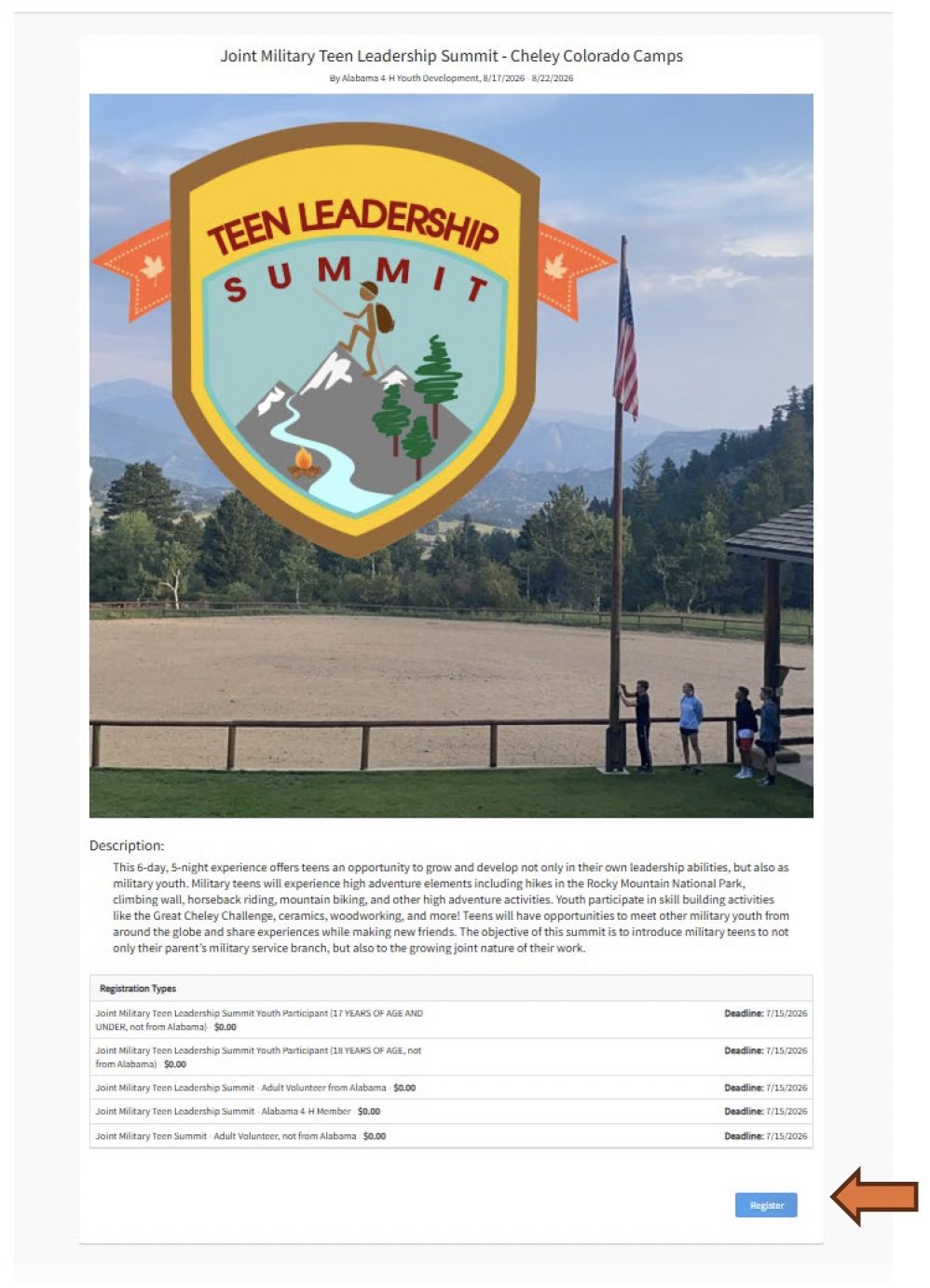
Figure 1
Step 2
Go to your email account and open the email from 4HOnline. Click Continue Registration (figure 2).
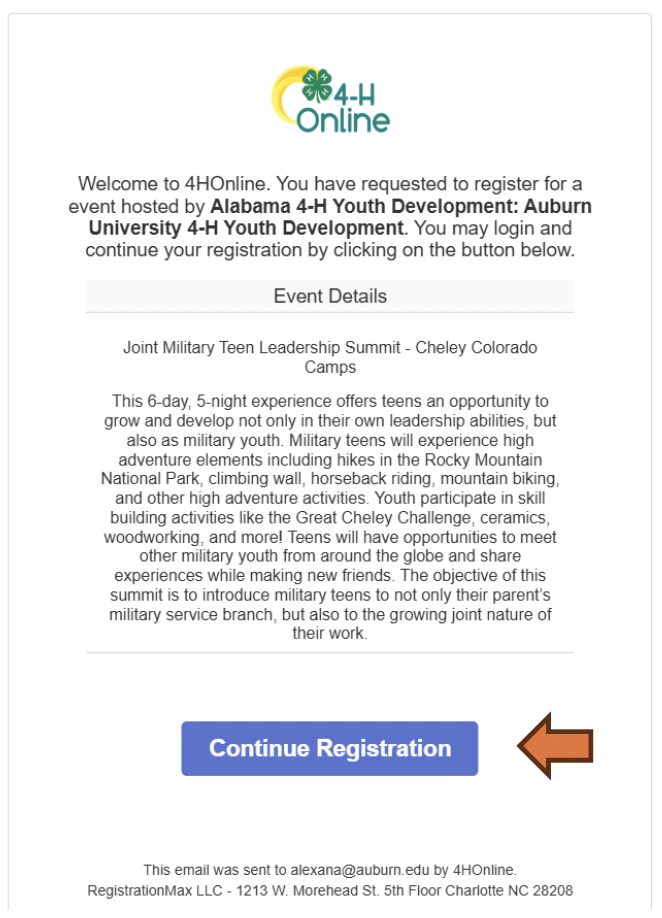
Figure 2
Current 4HOnline Users
On the next page, those who already have a 4HOnline account will be able to select qualifying members from the Existing Members list (figure 3).
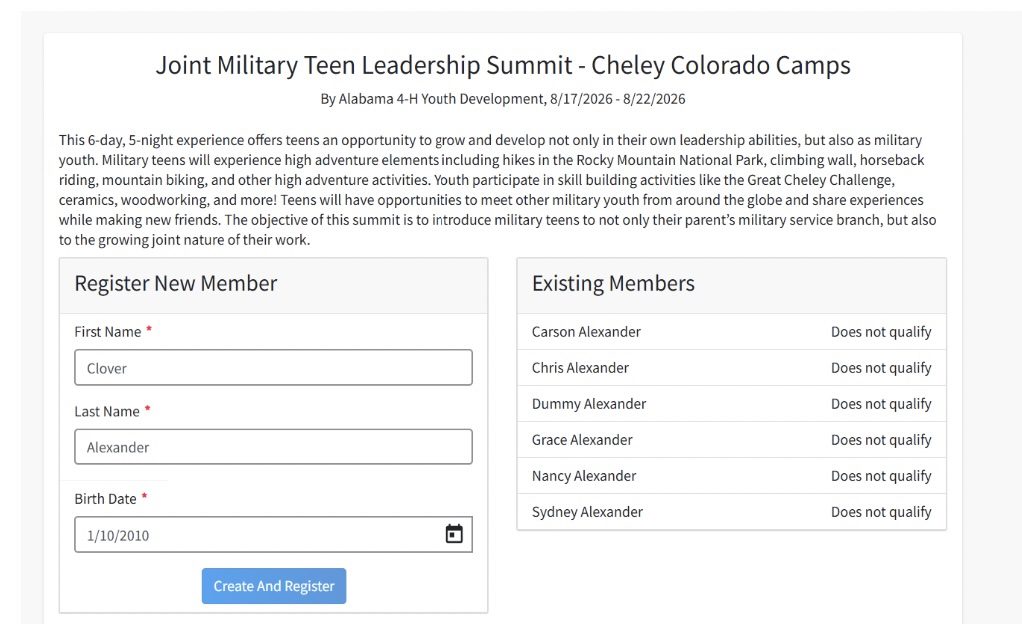
Figure 3
After selecting a qualifying member, complete the registration by entering all of the required information and clicking Submit. After completing all registration requirements, click Finish on the summary page (figure 4).
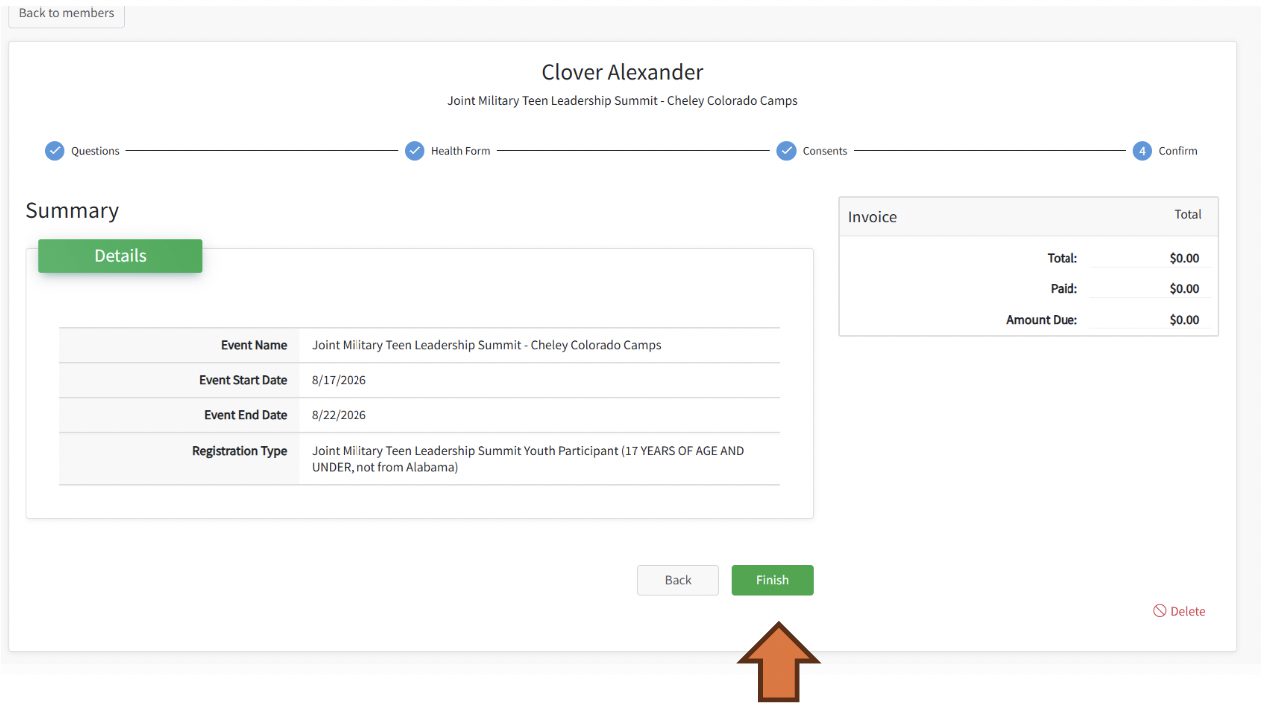
Figure 4
You will then see a pop-up screen where you can click Add Another Registration if your are registering more than one camper or volunteer for the event (figure 5).
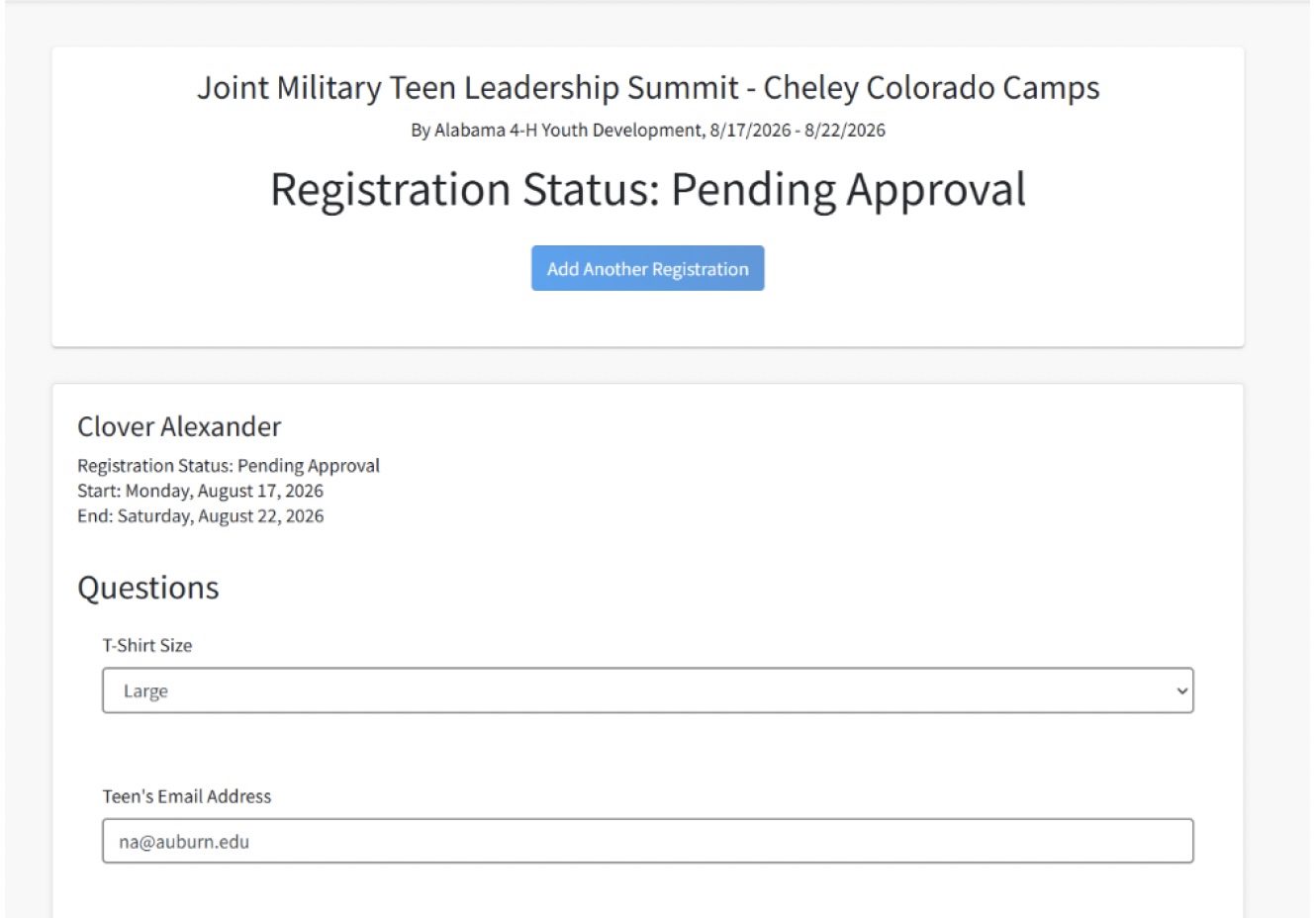
Figure 5
New 4HOnline Users
On the next page, those who are new to 4HOnline will need to enter information in the Register New Member section (figure 3). Click Create And Register and then click Create And Register again.
Figure 3
You will get a pop-up box that allows you to select the type of registration that best fits you (figure 6). Review the information carefully and then click Register beside your registration type.
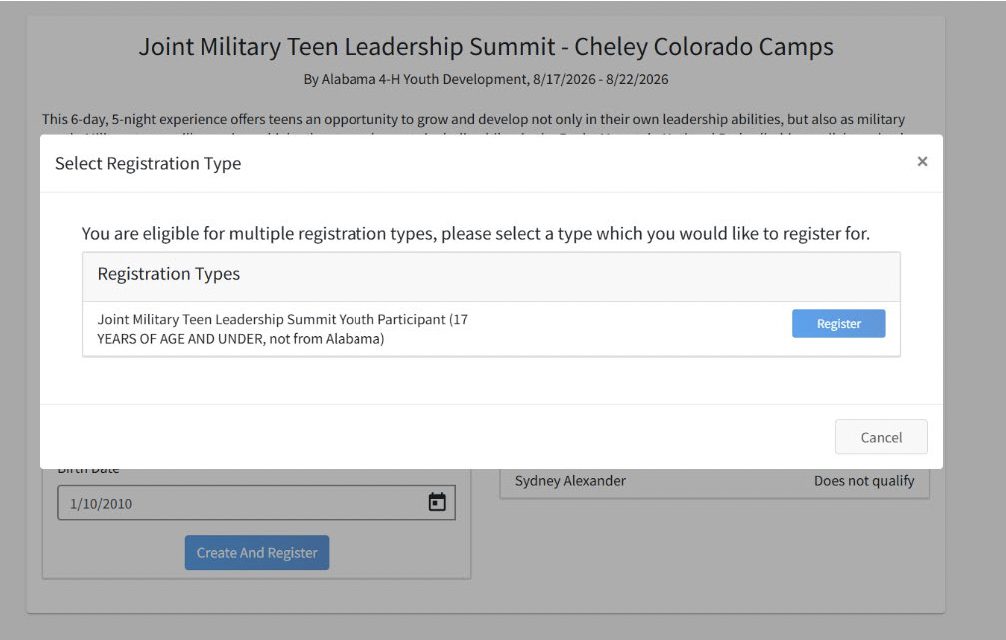
Figure 6
From there, complete the registration by entering all of the required information and clicking Submit. After completing all registration requirements, click Finish on the summary page (figure 4).
Figure 4
You will then see a pop-up screen where you can click Add Another Registration if your are registering more than one camper or volunteer for the event (figure 5).
Figure 5
Step 3
You will receive an email to your email account when the registration is submitted and another email once the registration is approved.
More Information
For more information or if you have issues with registration, contact Nancy Alexander at alexana@auburn.edu. For general camp questions, contact Casey Mull at state4hleader@aces.edu.